Zoom defaults to “Active Speaker” view when a meeting is recorded to the cloud. For smaller meetings and classes, you might instead want the “gallery view” so you have a better view of everyone in the meeting.
Good news! For cloud recordings, you can change the default recording view from “active speaker” to “gallery view”. (Note: To my knowledge, this option is not available for “local recordings” but I have yet to test this fully).
Before you start your meeting, log into you Zoom account in your browser. Then, go to Settings -> Recording -> Untick “Record Active Speaker with Shared Screen” and tick “Record Gallery View with Shared Screen”. Then, be sure to click “Save”.
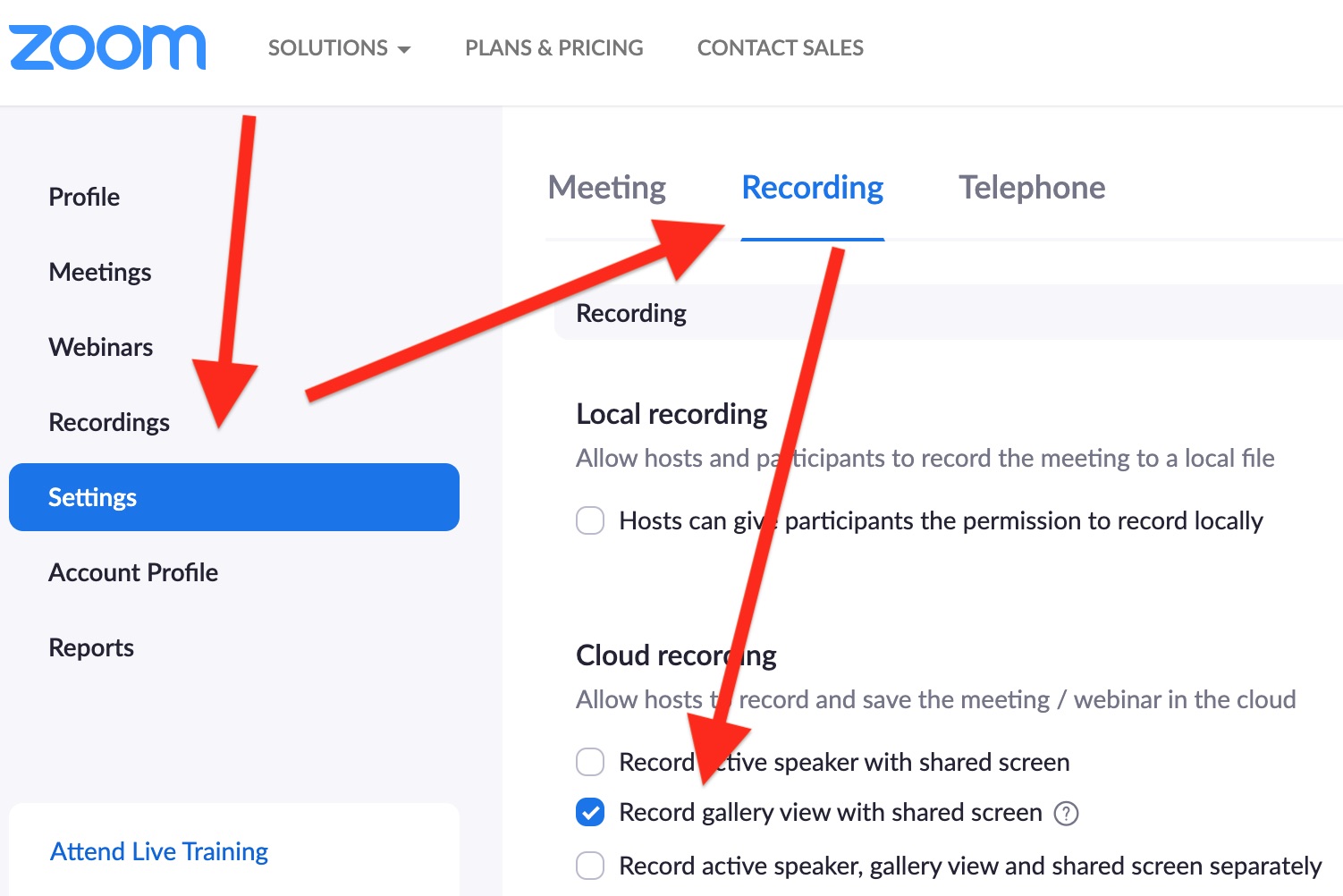
Now, when you start your Zoom meeting and record it, the gallery view will be the recorded view. The “with shared screen” part means that if someone shares their screen, that will be recorded full screen during that time (instead of the gallery view of the participants).
Note: As the meeting organizer, it doesn’t actually matter whether you use active speaker or gallery view during the meeting. The recording will be whatever is set in your recording settings, as described above.
Bonus: How to record active speaker, gallery view and shared screen separately?
In the screenshot above, there is also the option to record “active speaker, gallery view and shared screen separately”, which means you’ll end up with three different recordings of the meeting.
This can be helpful if:
- you’re not sure which view you’d prefer to have recorded
- you’re interested in editing together the 3 video sources later
- when someone is sharing their screen, you do not want a shared screen to be recorded instead of the gallery view (This seems like an unlikely scenario, but possible!)
Have you ALREADY recorded your meeting?
Thanks for your questions about this in the comments below! I wish I had better news!
If you have ALREADY recorded your Zoom meeting, unfortunately there is no way to change the recorded view from active speaker to gallery view (or to active speaker, gallery view and shared screen) afterwards. Zoom only records the format you specified BEFORE your meeting was recorded.